
Apple's first foldable iPhone is expected to launch in late 2026. Ming-Chi Kuo's supply chain analysis confirms that Samsung Display has been contracted to supply the foldable panels, with 7 to 8 million units ordered to meet cumulative demand over a two to three year lifecycle. Foxconn is set to begin assembly in Q3 or early Q4 2025, with mass production commencing in the second half of 2026.
The device will feature a liquidmetal hinge. It is an amorphous alloy that is 2.5 times stronger than titanium, resistant to bending, deformation, and pressure. Samsung Display's panel integrates the touch layer directly into the display, reducing overall thickness by 19 percent while improving color reproduction and peak brightness. The hinge design aims to reduce or eliminate the display crease that has plagued competing foldables.
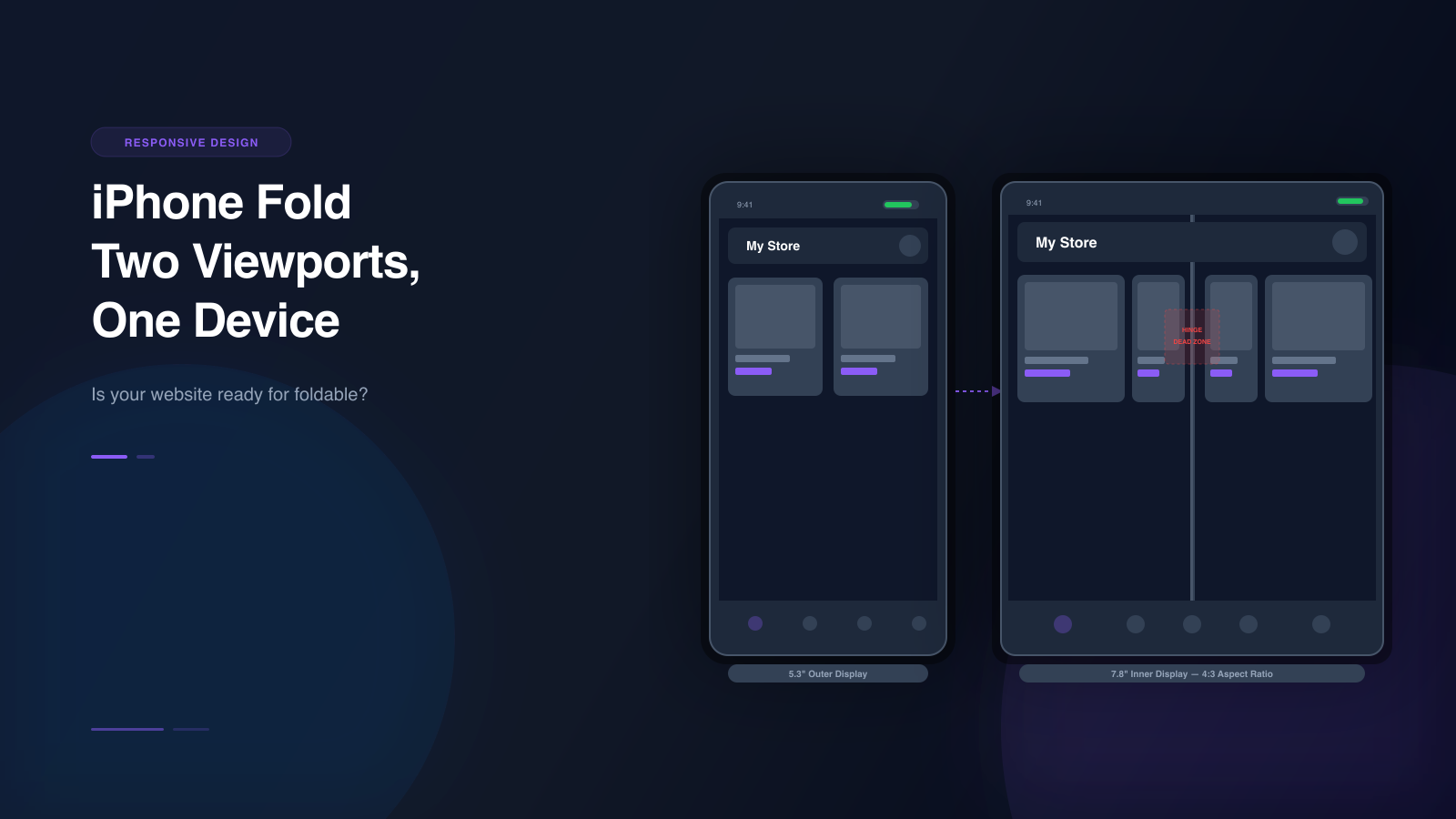
When it arrives, it will be the first Apple device with two completely different screen configurations in a single phone. The outer display is roughly 5.3 inches, similar to an iPhone SE. The inner display is roughly 7.8 inches, closer to an iPad mini in landscape. The aspect ratio shifts from a narrow phone shape to a near-square tablet shape. And there is a physical hinge running down the center of the inner screen that creates a dead zone your layout has never had to account for.
This is not a minor responsive edge case. It is a fundamental shift in how mobile layouts need to work.
What makes foldables different from every other device
Every responsive design challenge you have dealt with so far has assumed one thing: the screen is a single, unbroken rectangle.
You design for width. You add breakpoints. You test at 320px, 375px, 768px, and 1024px. The rectangle gets smaller or bigger, but it stays a rectangle.
Foldables break that assumption in three ways.
Two viewports in one device
A foldable phone has two distinct screen states. The folded state uses the outer display, a narrow, phone-shaped screen. The unfolded state uses the inner display, a wider, nearly square screen.
These are not just different sizes. They are different aspect ratios, different pixel densities, and different user expectations. A layout that works on a 5.3-inch narrow screen will not automatically work on a 7.8-inch near-square screen. The grid columns collapse. The image cropping changes. The navigation patterns shift.
Here are the approximate dimensions you are working with for the iPhone Fold:
| State | Display | Aspect Ratio | Estimated Viewport |
|---|---|---|---|
| Folded | 5.3" outer | ~19.5:9 (tall narrow) | ~375 x 812 |
| Unfolded | 7.8" inner | ~4:3 (near square) | ~600 x 800 |
Compare that to the devices you are already testing on. An iPhone 15 is 393 by 852. A Galaxy S25 is 360 by 780. Both are tall, narrow rectangles. The iPhone Fold unfolded is wider than it is tall relative to those phones. Your entire layout strategy changes.
The hinge is a dead zone
When the iPhone Fold is unfolded, there is a physical hinge mechanism running vertically through the center of the inner display. Apple's hinge uses liquidmetal, an amorphous alloy 2.5 times stronger than titanium, designed to resist bending, deformation, and pressure while reducing or eliminating the display crease that has plagued competing foldables.
Despite the advanced materials, content that renders directly over the hinge area will be visually bisected. Text gets cut in half. Images lose their focal point. Interactive elements become unreliable.
This is not a software problem you can fix with CSS alone. It is a physical constraint of the hardware. Your layout needs to treat the hinge as a non-interactive zone, similar to how you would treat a safe area around a notch or home indicator.
The difference is that the hinge position is predictable. It is always in the center of the inner display when unfolded. But most developers have never had to design around a vertical dead zone in the middle of a screen before.
Users switch states mid-session
A user can start reading your page on the outer display, then unfold the phone to get a larger view. Or they can start on the inner display, then fold it to put the phone in their pocket. Either way, the viewport changes while the page is still loaded.
Your layout needs to handle this transition gracefully. If you have a fixed header that works on the outer display, it might cover half the viewport when the user unfolds. If you have a three-column grid on the inner display, it might collapse to one column when the user folds. The transition itself, the moment the screen changes, is where most layout failures happen.
The specific layout failures you will hit
These are the most common problems developers encounter when building for foldable devices. Each one is avoidable, but only if you test for it.
Grid collapse
A three-column product grid on the inner display becomes a single-column scroll on the outer display. This is not just a CSS issue. It changes the information density, the scroll depth, and the user's ability to compare options.
The problem is that a simple max-width query catches both the outer display of a foldable and a regular iPhone SE. You need to be more specific about which device you are targeting, and that is where device-posture and viewport segment APIs become important.
Hinge obstruction
Content that renders directly under the hinge is visually split. This is most noticeable with centered text that gets cut between two words, product images where the subject falls on the hinge line, video players with controls spanning the hinge, and maps or data visualizations that lose context when bisected.
The fix is to detect the hinge position and add padding or margin to push content away from the center line. The CSS env() function provides viewport segment variables that give you the dimensions of each half of the display. This lets you build layouts that respect the physical hardware instead of fighting it.
Fixed header explosion
A sticky header that is 56 pixels tall on the outer display is fine. The same 56 pixel header on the inner display, which is nearly square, takes up a much larger percentage of the viewport. On an 800 pixel tall inner display, a 56 pixel header is 7 percent of the screen. On a 400 pixel tall outer display, it is 14 percent. The proportions shift, and what felt balanced on one screen feels cramped on the other.
You can use the clamp() function to set an adaptive header height, or use device-posture media queries to apply different heights for folded and unfolded states.
Aspect ratio lock
Properties like aspect-ratio that you set for phone-shaped content break on the near-square inner display. A video player set to 16:9 works on the outer display but may overflow or leave excessive whitespace on the inner display. You need to detect the fold state and adjust the aspect ratio accordingly.
Keyboard overlap
The virtual keyboard behaves differently on the outer and inner displays. On the smaller outer display, the keyboard takes up a much larger percentage of the viewport. Input fields that are visible on the inner display may scroll off-screen or get covered by the keyboard on the outer display.
This is especially critical for login forms, checkout address fields, search inputs, chat interfaces, and any form with multiple fields. The CSS env(keyboard-inset-height) variable can help you detect and respond to the keyboard, but only if your layout is designed to be keyboard-aware in the first place.
The CSS you need to write
Foldable device support relies on three CSS technologies that are already available in modern browsers.
Device posture media query
The device-posture media feature detects whether a foldable device is folded or unfolded. The continuous value means the screen is flat and fully unfolded. The folded value means the device is closed or partially closed. There is also a half-open value for devices that support intermediate positions.
Browser support is growing. Chrome and Edge support device-posture today. Safari support is expected with the iPhone Fold launch. For devices that do not support it, you need fallback media queries based on viewport width.
Viewport segment environment variables
The env(viewport-segment) variables give you the dimensions and positions of each segment of a multi-segment display. On a foldable phone unfolded, there are two segments, one on each side of the hinge.
The first argument is the segment index horizontally, the second is the segment index vertically. For a typical foldable in landscape orientation, 0 0 is the left segment and 1 0 is the right segment.
You can use these variables to build layouts that snap cleanly to each half of the display without content crossing the hinge. You can also size content to fit exactly within one segment, so your left panel and right panel each occupy exactly one half of the inner display.
JavaScript viewport segment detection
For dynamic behavior that CSS cannot handle alone, the Viewport Segments API provides JavaScript detection. You can check the number of segments to determine whether the device is folded or unfolded, and listen for resize events to respond when the user folds or unfolds mid-session.
This lets you dynamically swap between folded and unfolded layouts without relying solely on CSS media queries. You can expand sidebars, collapse navigation, or restructure your entire page layout based on the current fold state.
Progressive enhancement pattern
Because device-posture and viewport segments are not universally supported yet, use a progressive enhancement approach. Start with a base layout that works everywhere. Add an enhancement for wider screens using min-width queries. Then add a foldable-specific enhancement inside an at-supports block that checks for device-posture support.
This pattern gives you a solid fallback for devices that do not support foldable CSS features, while providing an optimized experience for devices that do.
Building apps for fold and flip devices
Foldable support is not just about CSS. If you are building a web application, not just a marketing site, there are additional considerations.
State persistence across fold transitions
When a user unfolds or folds their device, the page does not reload. The viewport changes, but the application state persists. This means scroll position should be preserved or intelligently reset, form data should not be lost, modal dialogs should resize or reposition, media playback should continue without interruption, and navigation state like open menus and expanded accordions should adapt to the new viewport.
You can use window.matchMedia to listen for device-posture changes and respond dynamically. When the device unfolds, expand your sidebar and show a multi-panel layout. When it folds, collapse the sidebar and go full-width.
Flex mode and half-open states
Samsung's foldables and Google's Pixel Fold support flex mode, where the device is partially folded at an angle, like a laptop. The top half of the screen shows content, and the bottom half shows controls.
If your app supports this use case, you need to detect the half-open posture and split your layout accordingly. Use grid-template-rows to give the top half the visible content and the bottom half the controls or keyboard.
Touch and interaction differences
Foldable devices have different touch characteristics depending on the state. In folded mode, use standard phone touch targets with single-column interaction. In unfolded mode, use larger touch targets and account for possible stylus input like the S Pen on Galaxy Z Fold. In half-open mode, the top half may be viewed at an angle, so content should be readable without direct touch, while the bottom half is the primary touch surface.
PWA display modes for foldables
Progressive Web Apps need to declare display modes that work across both screen states. Use standalone display mode to ensure your PWA uses the full viewport on both the outer and inner displays. The window-controls-overlay override allows your app to draw into the title bar area on devices that support it, giving you more screen real estate on the inner display.
How to test foldable layouts today
You do not need to wait for the iPhone Fold to start testing. Foldable Android devices are already shipping, and simulation tools can help you validate layouts before hardware is in your hands.
The devices already in market
| Device | Outer Display | Inner Display | Fold Axis |
|---|---|---|---|
| Samsung Galaxy Z Fold 6 | 323 x 792 | 619 x 720 | Vertical |
| Samsung Galaxy Z Flip7 | 240 x 250 | 360 x 800 | Horizontal |
| Google Pixel 9 Pro Fold | 412 x 924 | 791 x 820 | Vertical |
| Google Pixel 10 Pro Fold | 412 x 900 | 791 x 820 | Vertical |
| Google Pixel Fold | 384 x 832 | 840 x 700 | Vertical |
Each of these devices has different viewport dimensions, pixel densities, and fold behaviors. Testing on all of them, or simulating them, is the only way to catch layout issues before users do.
What Chrome DevTools can and cannot do
Chrome DevTools has basic foldable support. You can toggle between single and dual-screen modes, and set device posture to continuous or folded. But there are limitations. The device list does not include the iPhone Fold. Hinge rendering is not simulated. Crease effects are not visible. Viewport segment environment variables may not behave identically to real hardware. And there is no way to test iOS Safari behavior on a Windows or Linux machine.
For quick responsive checks, DevTools is fine. For validating that your foldable layout actually works, you need higher-fidelity simulation.
How Emuluxe solves foldable testing
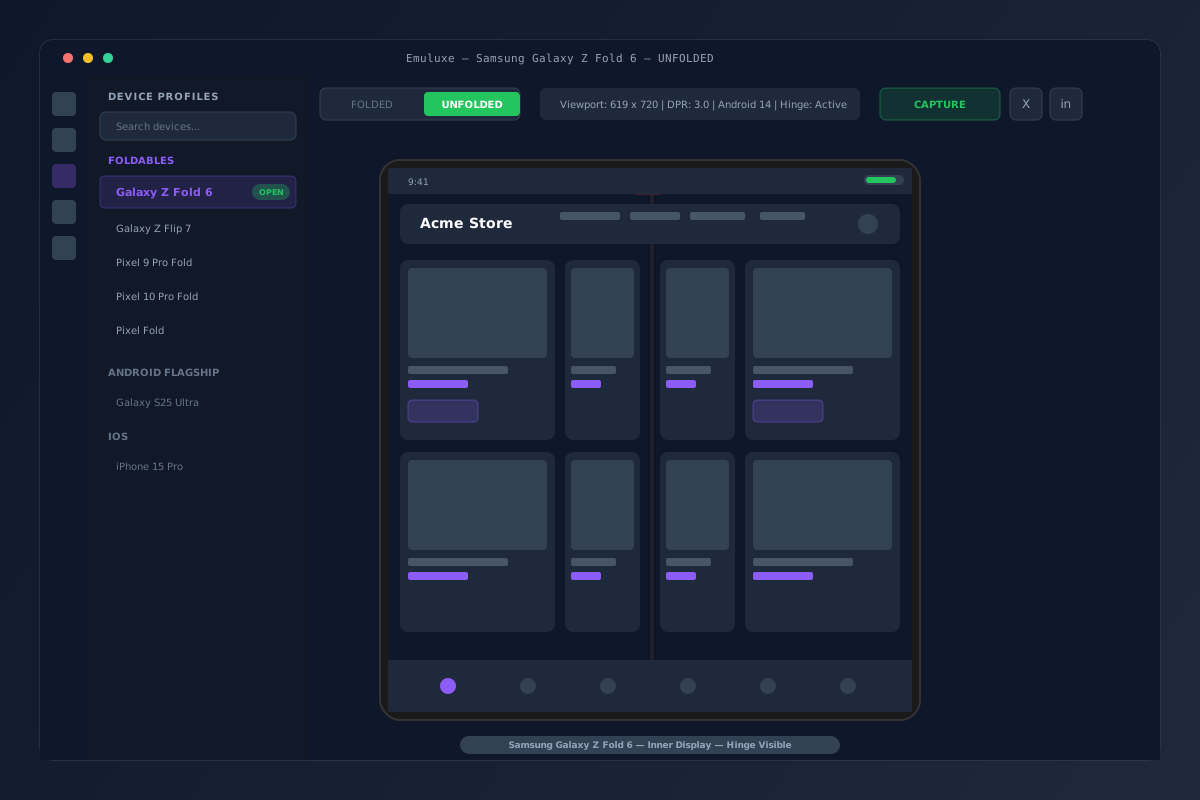
Emuluxe includes five foldable device profiles, each with full fold-state simulation. Every profile contains folded and unfolded viewport and screen dimensions matched to the actual hardware specifications, fold behavior with axis and direction, configurable hinge rendering with adjustable width and color, a crease overlay with CSS gradient effect that simulates the physical crease on the inner display, a one-click fold-state toggle, animated 850-millisecond transitions with 3D perspective transforms, and separate safe area definitions for both the folded and unfolded states.
This is what sets Emuluxe apart from Chrome DevTools. DevTools gives you dual-screen mode and a device posture toggle. It does not render the hinge. It does not simulate the crease. It does not show you how content looks when it spans the physical fold line. It does not let you test fold-state transitions with animation. And it does not include the iPhone Fold in its device list.
Emuluxe does all of these things inside your editor. The simulation is running against your localhost dev server. Every change you make to your code appears in the simulator in real time. You see the foldable layout as your users will see it, not as a simplified approximation.
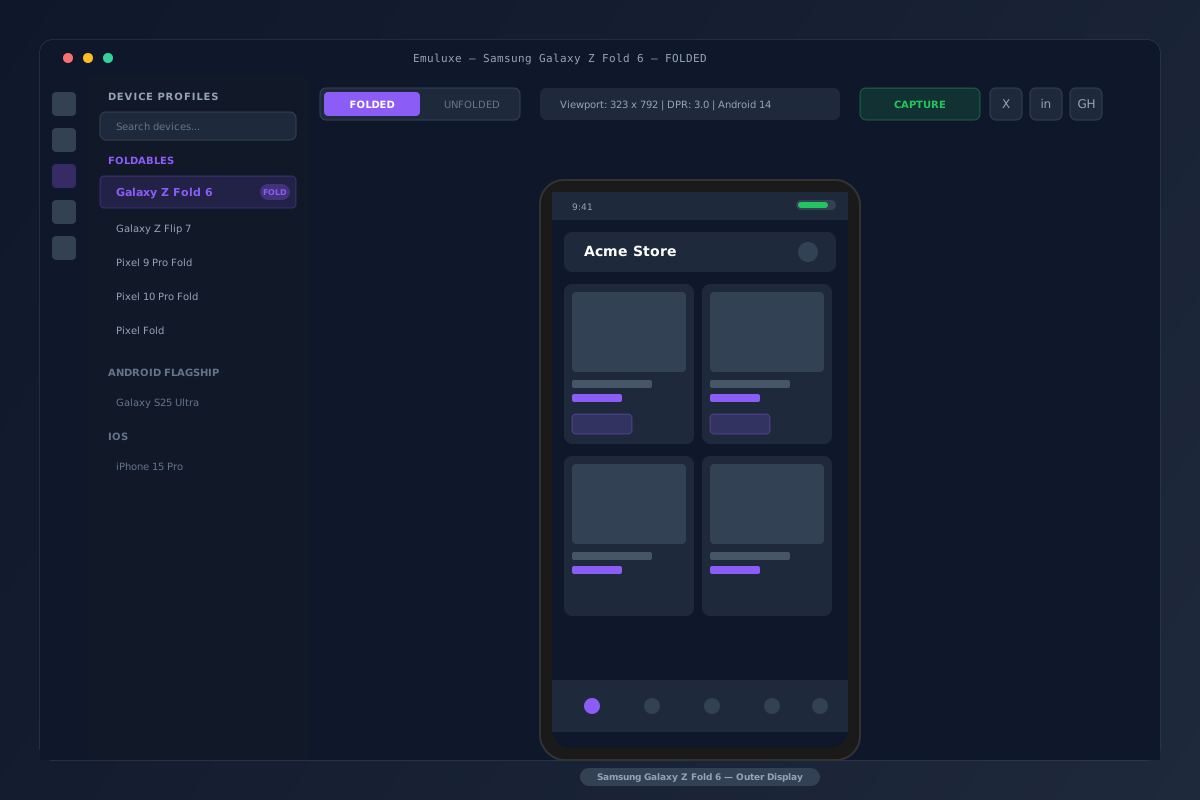
Here is the testing workflow. Start your dev server with Vite, Webpack, or any local dev tool. Open Emuluxe in VS Code or Cursor using Cmd+Alt+E. Select a foldable device from the Foundry, such as the Samsung Galaxy Z Fold 6 or Google Pixel 10 Pro Fold. The simulator opens in the folded state by default, showing the outer display at the exact viewport dimensions of that device. Click the fold toggle button or press the keyboard shortcut to switch to the unfolded state. The viewport swaps to the inner display dimensions. The hinge line appears in the correct position with the correct width. The crease overlay activates, showing the visual effect of the physical fold. Check your layout on both states. Look for grid collapse, hinge obstruction, fixed header explosion, and aspect ratio issues. Capture a screenshot of each state. Attach both to your pull request as proof that the layout works on a foldable device.
In practice, this is what it looks like. The screenshot below shows Emuluxe simulating a Google Pixel 10 Pro Fold displaying the GSMArena page for the upcoming Apple iPhone Ultra. This is the same kind of real-world content your users will be viewing on foldable devices, and it shows exactly how the layout renders on the inner display with the hinge running through the center.
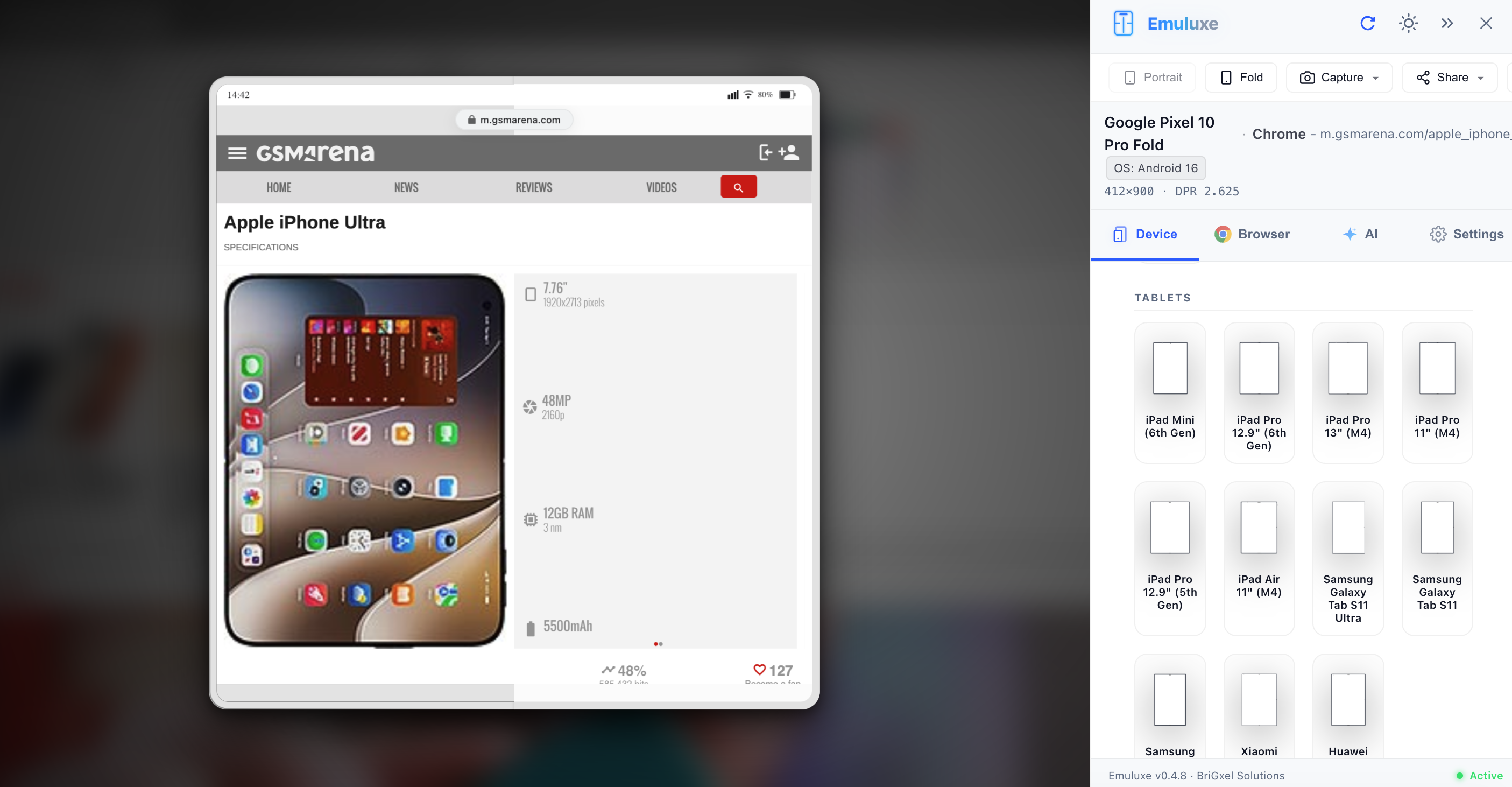
This is what the iPhone Fold form factor looks like in practice. A device that transitions between a narrow phone and a near-square tablet, with the hinge dividing the inner display into two distinct viewport segments.

AI-powered foldable diagnostics
Emuluxe's AI Audit Engine provides automated foldable layout analysis. When you run a simulation on a foldable device profile, the Layout Inspector checks for overflow, clipping, and content that crosses the hinge boundary. It detects grid items that are bisected by the fold line, text that spans the hinge, and interactive elements positioned in the dead zone. Each issue gets a severity rating and a code-snippet fix with the specific CSS selector and property to change.
The Performance Analyzer monitors layout stability during fold-state transitions. When you toggle between folded and unfolded, it measures cumulative layout shift and flags elements that cause jarring visual changes during the transition. This catches the fixed header explosion and aspect ratio lock failures before they reach users.
The Accessibility Analyzer runs seven WCAG checks against both folded and unfolded states, verifying that touch targets remain at least 44 pixels on the outer display while being appropriately sized on the inner display. It also checks that the hinge dead zone does not overlap with critical interactive elements.
Automated foldable testing for teams
For teams using CI/CD, Emuluxe's CLI supports automated foldable testing. Run the snapshot command with a foldable device and both fold states to capture side-by-side screenshots. Post them to your pull request automatically via the GitHub Action template. This catches foldable regressions on every push, not just when someone remembers to check manually.
For AI-assisted development, Emuluxe's MCP server gives AI coding agents direct access to foldable device context including viewport segments, device posture, and hinge position data. Your coding assistant in Cursor or Claude Code can simulate a foldable device, inspect the rendered layout, detect hinge obstruction issues, and suggest viewport-segment-based layout fixes using the actual device dimensions. The agent receives structured feedback from the simulation that it can act on, rather than guessing from code alone.
What to check before iPhone Fold ships
Use this checklist for any page that matters to your business.
Outer display (folded)
- Does the navigation work on a narrow, phone-shaped screen?
- Are touch targets at least 44 pixels?
- Does the form layout stack correctly?
- Is the CTA visible without scrolling?
- Does the keyboard not cover critical input fields?
Inner display (unfolded)
- Does the grid layout adapt to the near-square aspect ratio?
- Is any content hidden under the hinge crease?
- Does the header resize for the larger viewport?
- Are images cropped appropriately for the wider display?
- Does the layout feel intentional, not just zoomed in?
Fold transition
- Does the layout adapt when the user folds or unfolds mid-session?
- Is scroll position preserved or intelligently reset?
- Do fixed elements like headers, footers, and CTAs resize correctly?
- Does media playback continue without interruption?
- Is form data preserved across the transition?
Hinge awareness
- Is any text bisected by the hinge?
- Do images avoid the center line, or is the subject split?
- Are interactive elements positioned away from the hinge?
- Does the layout treat the hinge as a natural divider?
Why this matters now
The iPhone Fold is not a distant rumor. Ming-Chi Kuo's supply chain analysis confirms Samsung Display has received orders for 7 to 8 million foldable panels, with Foxconn beginning assembly in Q3 or Q4 2025 and mass production in the second half of 2026. Samsung has already shipped five generations of Galaxy Z Fold. Google has shipped two generations of Pixel Fold. Foldable devices are not a future trend. They are a present reality with a growing install base.
Every month you wait to test foldable layouts is a month of technical debt accumulating. When the iPhone Fold ships, your users will immediately start opening your site on a device with two viewports. The sites that handle it well will feel modern and polished. The sites that do not will feel broken.
The developers who start testing now, on the foldable devices already in market and through simulation tools like Emuluxe, will be ready when the form factor goes mainstream. The developers who wait will be scrambling to fix layouts after users have already noticed.
The fix is not to rebuild your entire CSS architecture. It is to add foldable awareness to your existing responsive workflow. Test on a foldable profile. Check the hinge. Toggle between folded and unfolded. Fix what breaks. Repeat.
Your responsive design was built for rectangles. Foldables are not rectangles. Start testing now.