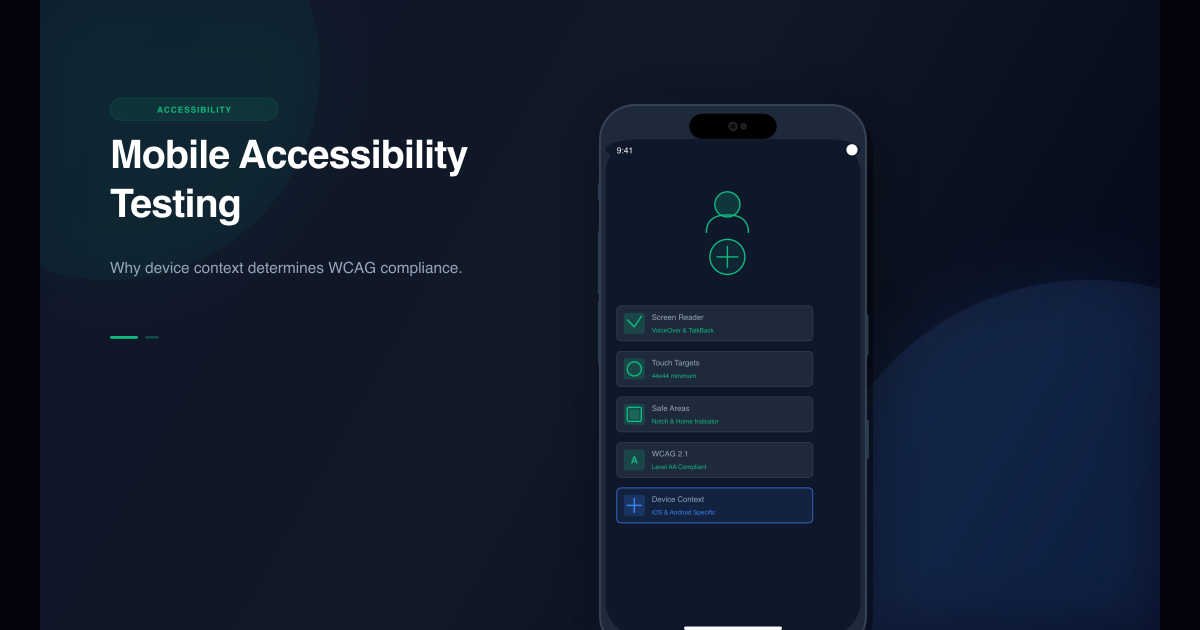
Mobile accessibility is not the same as desktop accessibility.
Most teams run accessibility audits on desktop browsers. They check contrast ratios, alt text, keyboard navigation, and ARIA labels. The tools pass. They ship.
Then a blind user opens the site on an iPhone and the experience is broken.
The problem is that desktop accessibility tools cannot see device-specific accessibility contexts. Mobile screen readers behave differently than desktop screen readers. Touch targets that work with a mouse are unusable with fingers. Safe areas hide content from assistive technology. Device-specific UI patterns create accessibility barriers that only show up on actual devices.
Emuluxe solves this by providing high-fidelity mobile simulation with device-specific accessibility context that desktop tools cannot match.
The desktop accessibility illusion
Desktop accessibility tools like axe-core, Lighthouse, and WAVE are excellent at catching code-level accessibility issues:
- Missing alt text
- Insufficient color contrast
- Empty form labels
- Invalid ARIA attributes
- Keyboard navigation traps
But they cannot detect mobile-specific accessibility failures:
- Touch target sizes on actual devices
- Screen reader behavior differences between iOS and Android
- Safe area content hidden from assistive technology
- Device-specific gesture accessibility
- Mobile keyboard accessibility patterns
- Dynamic island and notch accessibility implications
Desktop tools analyze your code in a desktop browser context. Mobile accessibility is about how your code interacts with mobile devices - and that requires device context. Emuluxe brings this device context directly into your development workflow through its Chrome Extension, VS Code integration, and MCP server.
Screen reader differences that matter
iOS VoiceOver vs Android TalkBack
The two major mobile screen readers have fundamentally different navigation patterns and behaviors.
| Feature | iOS VoiceOver | Android TalkBack |
|---|---|---|
| Navigation order | Left-to-right, top-to-bottom strictly | Can follow visual order more flexibly |
| Gesture set | Specific one-finger gestures | Different gesture combinations |
| Focus indicator | Black rectangle around element | Green rectangle with sound feedback |
| Element announcement | "Button, double tap to activate" | "Button, double tap to activate" (similar but timing differs) |
| Group handling | Groups are announced as single units | Groups can be expanded/collapsed |
| Form handling | Different focus management | Different form field announcements |
These differences mean that a layout that works perfectly with VoiceOver may be confusing or unusable with TalkBack, and vice versa.
Real-world screen reader failures
Case 1: Custom gesture conflicts
A custom swipe gesture for a carousel conflicted with TalkBack's navigation gestures on Android. Desktop accessibility tools couldn't detect this because they don't simulate mobile screen reader gestures. Users couldn't navigate the carousel at all.
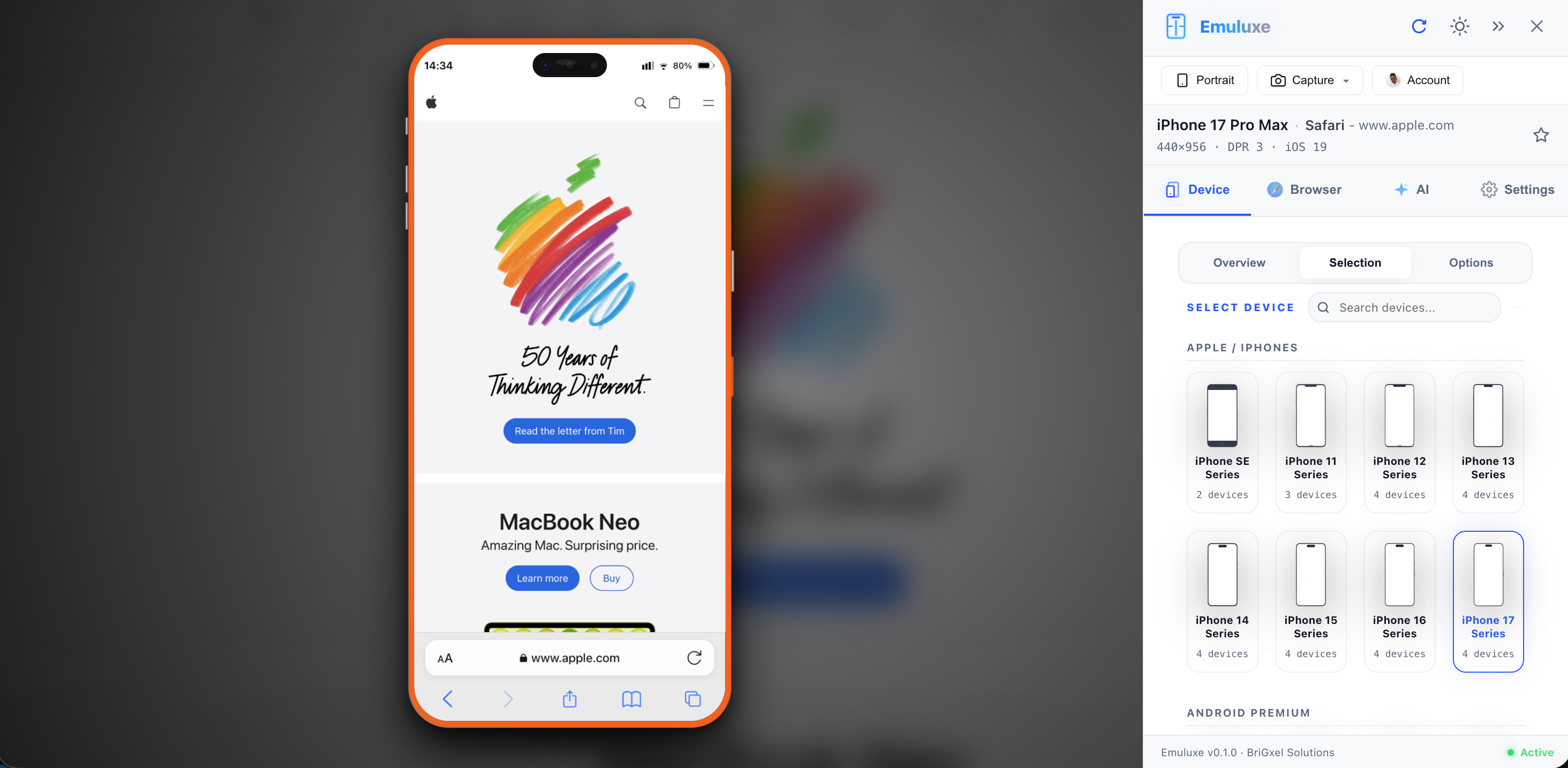
With Emuluxe, you can test this scenario on actual Android device profiles like Pixel 8 Pro or Galaxy S24 Ultra, seeing exactly how TalkBack will interact with your custom gestures before users encounter the problem.
Case 2: Focus order issues
A complex form had a logical visual tab order, but VoiceOver on iOS followed the DOM order strictly, causing users to jump between unrelated fields. TalkBack handled it better because it respects visual order more flexibly. Desktop tools showed no issues because they don't test screen reader navigation patterns.
Emuluxe's VS Code extension lets you test this exact scenario on iPhone 15 Pro and Pixel 8 Pro side by side, seeing how each screen reader handles your focus order in real-time as you develop.
Case 3: Hidden content exposure
Content hidden with display: none was still announced by VoiceOver in certain iOS versions due to a WebKit bug. TalkBack didn't have this issue. The inconsistency made the form unusable for VoiceOver users while working fine for TalkBack users.
Emuluxe includes iOS version-specific device profiles, so you can test how your content behaves across different iOS versions and catch these platform-specific accessibility issues before they reach users.
"Mobile screen readers are not just desktop screen readers on smaller screens. They have different navigation models, different gesture systems, and different behaviors. Testing only on desktop means you're not testing what your actual mobile users experience."
Touch targets and mobile accessibility
The 44x44 pixel rule
WCAG 2.1 Success Criterion 2.5.5 specifies that touch targets should be at least 44 by 44 CSS pixels. This seems straightforward, but mobile device context makes it complex.
The problem:
- CSS pixels don't map 1:1 to physical pixels on high-DPI mobile devices
- Safe areas and device UI reduce available touch space
- Device bezels and cases affect how users actually tap
- Different devices have different finger coverage areas
What desktop tools miss:
- Whether your 44px touch target is actually 44 physical pixels on a 3x DPR device
- Whether safe areas reduce the effective touch target size
- Whether device UI elements overlap your touch targets
- Whether your touch targets work with actual finger sizes, not just mouse clicks
Real-world touch target failures
Case 1: Safe area overlap
A bottom navigation bar had 48px touch targets that passed desktop checks. On iPhone 14 Pro with the dynamic island, the home indicator reduced the effective touch area. Users with motor impairments couldn't reliably tap the navigation items.
Emuluxe simulates the exact safe area dimensions for each device profile, including the home indicator on iPhone 14 Pro and the dynamic island on iPhone 16 Pro Max, so you can see exactly how your touch targets will be affected before deployment.
Case 2: High-DPI scaling
Buttons were sized at 44px in CSS, but on a 3x DPR device like iPhone 14 Pro Max, this rendered at 132 physical pixels. The touch target was actually larger than intended, causing accidental taps on adjacent elements. Desktop tools couldn't detect this because they don't account for device pixel ratios.
Emuluxe includes accurate device pixel ratio information for all device profiles, showing you exactly how your CSS pixels translate to physical pixels on each device so you can design touch targets that work correctly across the entire device spectrum.
Case 3: Bezel interference
Touch targets near screen edges were difficult to activate on devices with thick bezels or cases. Users had to stretch their thumbs uncomfortably or use two hands. Desktop accessibility tools don't simulate device bezels or case interference.
Emuluxe's device frame registry includes accurate bezel dimensions for every device profile, from the thick bezels of iPhone SE to the ultra-thin bezels of iPhone 16 Pro Max, helping you design touch targets that are reachable regardless of the device form factor.
Safe areas and accessibility
How safe areas affect assistive technology
Safe areas for notches, dynamic islands, and home indicators don't just affect visual layout - they affect accessibility too.
The accessibility impact:
- Screen readers may not announce content in safe areas
- Touch targets in safe areas may be unreachable
- Dynamic content in safe areas may not be properly exposed to assistive technology
- Focus management may break when content intersects safe areas
What desktop tools miss:
- Whether screen readers can access content in notch areas
- Whether touch targets in safe areas are actually tappable
- Whether dynamic islands hide critical accessibility information
- Whether focus management handles safe area intersections correctly
Safe area accessibility checklist
Notch and dynamic island areas:
- Are critical interactive elements placed away from the notch?
- Does screen reader navigation properly handle notch-obscured content?
- Are touch targets in notch areas at least 44x44 effective pixels?
- Is content in notch areas properly exposed to assistive technology?
Emuluxe makes this checklist actionable by rendering the exact safe area boundaries for each device profile, showing you visually where content will be hidden behind notches, dynamic islands, and home indicators.
Home indicator areas:
- Are bottom navigation elements above the home indicator safe area?
- Can users with motor impairments reach bottom controls without stretching?
- Does the home indicator interfere with swipe gestures used by assistive technology?
- Are critical actions placed in accessible areas, not near system UI?
With Emuluxe, you can test home indicator interference across different iOS versions and device sizes, from iPhone SE to iPhone 16 Pro Max, ensuring your bottom navigation works for all users.
Device-specific gesture accessibility
Custom gestures and assistive technology
Mobile apps often use custom gestures - swipe to delete, pinch to zoom, pull to refresh. These gestures create accessibility challenges that desktop tools cannot detect.
The problem:
- Custom gestures may conflict with screen reader gestures
- Gesture areas may be too small for users with motor impairments
- Alternative activation methods may not be provided
- Gesture feedback may not be accessible to screen reader users
What desktop tools miss:
- Whether your custom gestures conflict with VoiceOver or TalkBack
- Whether gesture areas are large enough for users with motor impairments
- Whether you've provided keyboard or button alternatives
- Whether gesture feedback is announced by screen readers
Gesture accessibility best practices
Provide alternatives:
- Always provide button alternatives to gesture-based actions
- Ensure keyboard users can activate all gesture functions
- Make gesture actions discoverable and clearly labeled
Test with screen readers:
- Verify gestures don't conflict with screen reader navigation
- Ensure screen reader users can access all functionality
- Test gesture areas with actual finger sizes, not mouse clicks
Emuluxe enables this testing by simulating both VoiceOver and TalkBack gesture systems, letting you see exactly how your custom gestures will interact with screen reader navigation patterns on each platform.
Consider motor impairments:
- Make gesture areas large enough for users with limited dexterity
- Allow gesture customization where possible
- Provide multiple ways to perform the same action
With Emuluxe's motor impairment simulation, you can test whether your gesture areas are large enough for users with limited dexterity across different device form factors.
Mobile keyboard accessibility
Virtual keyboard challenges
Mobile keyboards behave differently than physical keyboards, creating unique accessibility challenges.
The problem:
- Virtual keyboards reduce available viewport space
- Keyboard appearance can shift focus unpredictably
- Different keyboard layouts (iOS vs Android) affect usability
- Autocomplete and prediction features can interfere with screen readers
What desktop tools miss:
- How virtual keyboard appearance affects focus management
- Whether layout shifts trap keyboard focus
- Whether autocomplete features interfere with screen readers
- Whether form fields remain accessible when the keyboard is open
Real-world keyboard accessibility failures
Case 1: Focus trap on keyboard open
A modal dialog trapped focus when the virtual keyboard opened on iOS. The keyboard covered the form fields, and focus couldn't escape the modal. Desktop accessibility tools couldn't detect this because they don't simulate virtual keyboard behavior.
Emuluxe simulates virtual keyboard appearance and dismissal on both iOS and Android, letting you test focus management scenarios that only occur when the keyboard is actually open.
Case 2: Layout shift confusion
A form layout shifted dramatically when the virtual keyboard opened on Android. Screen reader users lost context because the focus moved to an unexpected location. Desktop tools showed no issues because they don't test virtual keyboard layout shifts.
With Emuluxe, you can see exactly how your layout responds to virtual keyboard appearance on different devices, ensuring screen reader users maintain context during keyboard interactions.
Case 3: Autocomplete interference
An autocomplete feature interfered with TalkBack's form field announcements on Android. Users couldn't hear what they were typing because the autocomplete suggestions were announced instead. Desktop accessibility tools couldn't detect this because they don't simulate mobile autocomplete behavior.
Emuluxe includes Android-specific keyboard simulation with autocomplete features, so you can test whether your form fields remain accessible when autocomplete suggestions appear.
How Emuluxe solves mobile accessibility testing
Emuluxe provides high-fidelity mobile simulation with device-specific accessibility context that desktop tools cannot match.
Device-specific screen reader simulation
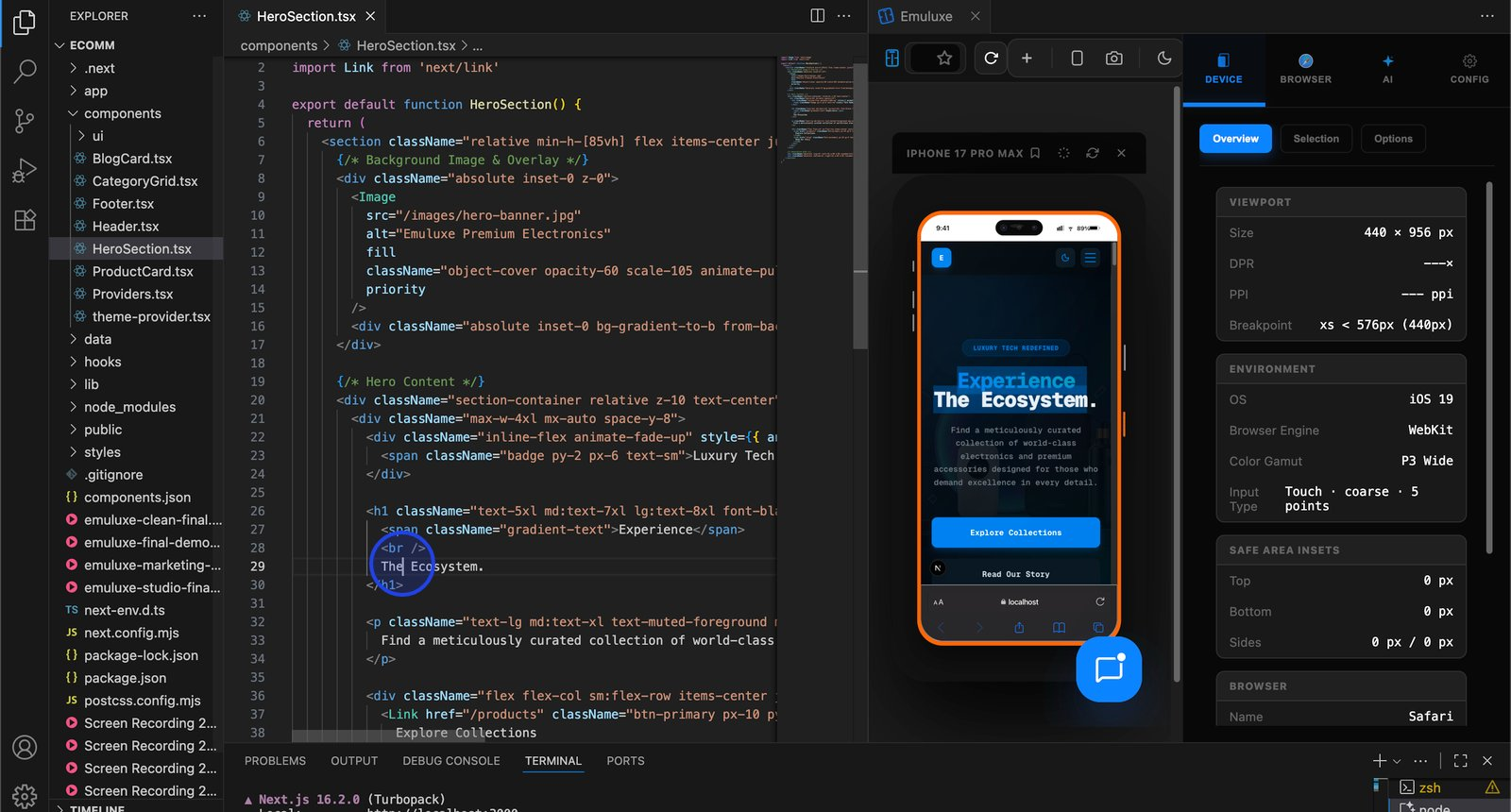
Emuluxe simulates how content is exposed to assistive technology on different devices:
- iOS VoiceOver patterns: See how your content is announced on iPhone device profiles
- Android TalkBack patterns: See how your content is announced on Android device profiles
- Focus order testing: Verify screen reader navigation order matches user expectations
- Gesture conflict detection: Identify custom gestures that conflict with screen reader gestures
Touch target validation with device context
Emuluxe validates touch targets with actual device dimensions and safe areas:
- Physical pixel accuracy: See how your CSS pixels map to physical pixels on high-DPI devices
- Safe area overlap detection: Identify touch targets that overlap with notches, dynamic islands, and home indicators
- Effective touch area calculation: Calculate the actual tappable area accounting for device UI
- Motor impairment simulation: Test whether touch targets work with realistic finger sizes
Safe area accessibility testing
Emuluxe shows how safe areas affect accessibility:
- Notch content exposure: See whether content in notch areas is accessible to screen readers
- Home indicator interference: Identify when the home indicator interferes with touch targets
- Dynamic island accessibility: Test how dynamic islands affect content accessibility
- Focus management validation: Verify focus works correctly when content intersects safe areas
Virtual keyboard simulation
Emuluxe simulates virtual keyboard behavior to catch keyboard accessibility issues:
- Keyboard layout shifts: See how your layout responds when the virtual keyboard opens
- Focus trap detection: Identify when virtual keyboard appearance traps keyboard focus
- Autocomplete interference: Test whether autocomplete features interfere with screen readers
- Viewport reduction validation: Verify content remains accessible when the keyboard reduces viewport space
The mobile accessibility testing workflow
Here's how to integrate device context into your mobile accessibility testing:
1. Start with desktop accessibility tools
Use desktop accessibility tools to catch code-level accessibility issues. This is your baseline accessibility check. Emuluxe complements these tools by adding the device-specific context that desktop tools miss.
2. Test on multiple device profiles
Test your accessibility on different device profiles to catch device-specific issues:
- iPhone 15 Pro for iOS VoiceOver testing
- Pixel 8 Pro for Android TalkBack testing
- iPhone SE for smaller viewport testing
- Galaxy S24 Ultra for large device testing
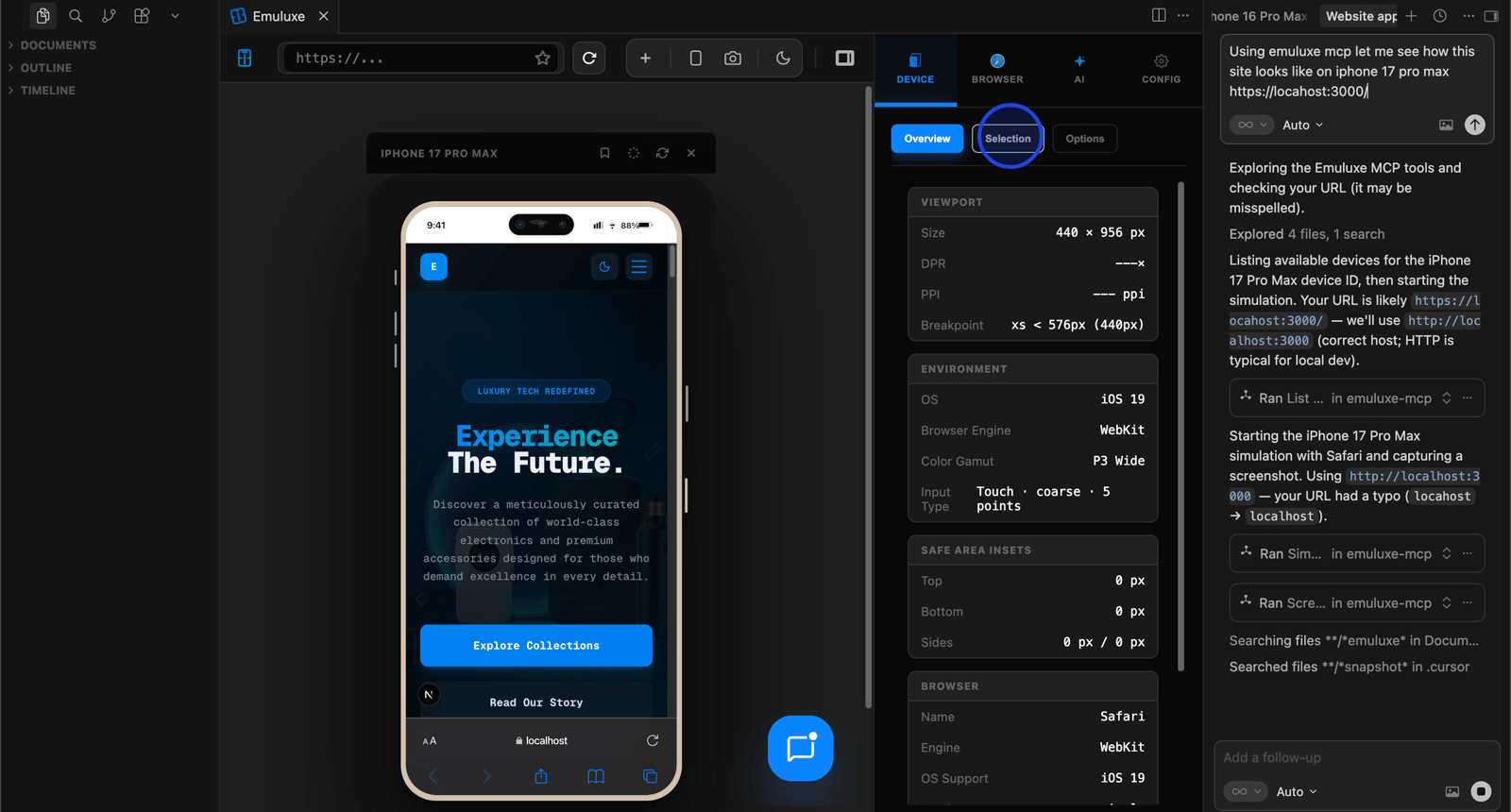
Emuluxe provides instant access to these device profiles through its Chrome Extension and VS Code integration, letting you switch between devices in seconds without needing physical hardware.
3. Test screen reader navigation
Verify screen reader navigation works correctly on both iOS and Android:
- Check that focus order matches user expectations
- Verify all interactive elements are reachable
- Ensure custom gestures don't conflict with screen reader gestures
- Test that content is announced correctly
Emuluxe's screen reader simulation shows you exactly how VoiceOver and TalkBack will announce your content, including focus order, element grouping, and gesture conflicts.
4. Test touch targets
Validate touch targets with device context:
- Check that touch targets are at least 44x44 effective pixels
- Verify touch targets don't overlap with safe areas
- Ensure touch targets work with realistic finger sizes
- Test that users with motor impairments can reach all controls
Emuluxe visualizes touch target boundaries and safe area overlaps, making it easy to identify problematic touch targets before they reach users.
5. Test safe areas
Check how safe areas affect accessibility:
- Verify content in notch areas is accessible to screen readers
- Ensure touch targets don't overlap with home indicators
- Test that dynamic islands don't hide critical content
- Validate focus management with safe area intersections
Emuluxe renders safe area boundaries for each device profile, showing you exactly where content will be hidden behind notches, dynamic islands, and home indicators.
6. Test virtual keyboard behavior
Validate accessibility when the virtual keyboard is open:
- Check that layout shifts don't trap focus
- Verify form fields remain accessible when the keyboard is open
- Test that autocomplete features don't interfere with screen readers
- Ensure content remains accessible with reduced viewport space
Emuluxe simulates virtual keyboard appearance and dismissal on both iOS and Android, letting you test focus management and layout shift scenarios that only occur when the keyboard is actually open.
Tools vs. simulation
Traditional accessibility testing tools have limitations:
Desktop accessibility tools
Desktop accessibility tools are great for code-level accessibility but:
- Cannot see device-specific accessibility contexts
- Cannot simulate mobile screen reader behavior
- Cannot validate touch targets with device context
- Cannot test safe area accessibility implications
- Cannot simulate virtual keyboard behavior
Real device testing
Real device testing is comprehensive but:
- Expensive and time-consuming
- Difficult to automate
- Doesn't integrate into development workflows
- Not practical for every change during development
High-fidelity simulation
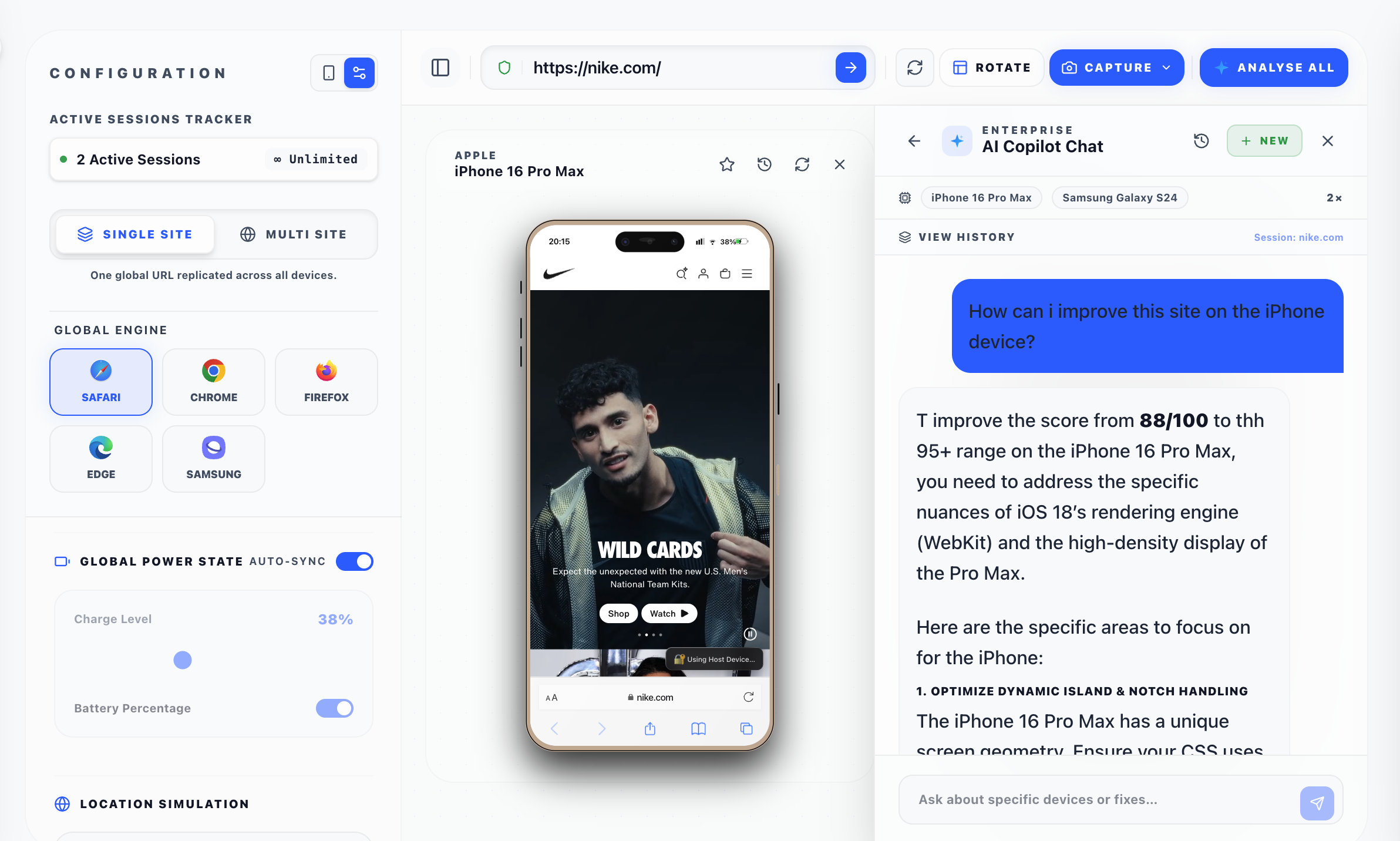
Emuluxe provides:
- Device-specific accessibility context
- Screen reader behavior simulation for iOS and Android
- Touch target validation with safe area awareness
- Virtual keyboard simulation for accessibility testing
- Integration into VS Code and Chrome workflows
- Fast, local accessibility testing during development
The bottom line
Mobile accessibility is not the same as desktop accessibility. Screen readers behave differently on iOS and Android. Touch targets that work on desktop are unusable on phones. Safe areas hide content from assistive technology. Virtual keyboards create unique accessibility challenges.
Desktop accessibility tools give you a false sense of security. They catch code-level accessibility issues but miss the device-specific accessibility issues that actually matter for mobile users.
Emuluxe provides high-fidelity mobile simulation with device context, showing you how your site behaves on real devices with real screen readers, real touch targets, real safe areas, and real virtual keyboards - not just how your code looks in a desktop browser.
If you care about mobile accessibility, you need to test with device context. Emuluxe brings this device context directly into your development workflow through its Chrome Extension, VS Code integration, and MCP server, making comprehensive mobile accessibility testing practical and efficient.
Otherwise, you're excluding a significant portion of your users.
Related Reading
- Android Chrome vs Safari: 12 Web Rendering Differences That Break Your Layout - Learn how iOS and Android rendering differences affect more than just accessibility
- iPhone Fold Launches in 2026: Is Your Website Ready for Two Viewports at Once? - Understand how foldable devices create new accessibility challenges
- Mobile Security Testing: Why Device Context Matters More Than Code Scanning - See how device context affects other aspects of mobile quality
Get Started Today
Ready to test your mobile accessibility with device-specific context?
Install Emuluxe Chrome Extension - Test your site's accessibility with device context in your development workflow.
Install Emuluxe VS Code Extension - Integrate device-specific accessibility testing directly into your VS Code development environment.
Explore Emuluxe MCP Server - Enable AI agents to participate in mobile accessibility testing workflows.